Mokka Widget&Events app - installation
Before you process with an integration, please be sure you have your own Store ID, Store Secret Key and Base URL. Without these data you won’t be able to make it. You can obtain them by visiting Mokka and contacting our Sales and Support in your country or by sending an email to integrations@mokka.world.
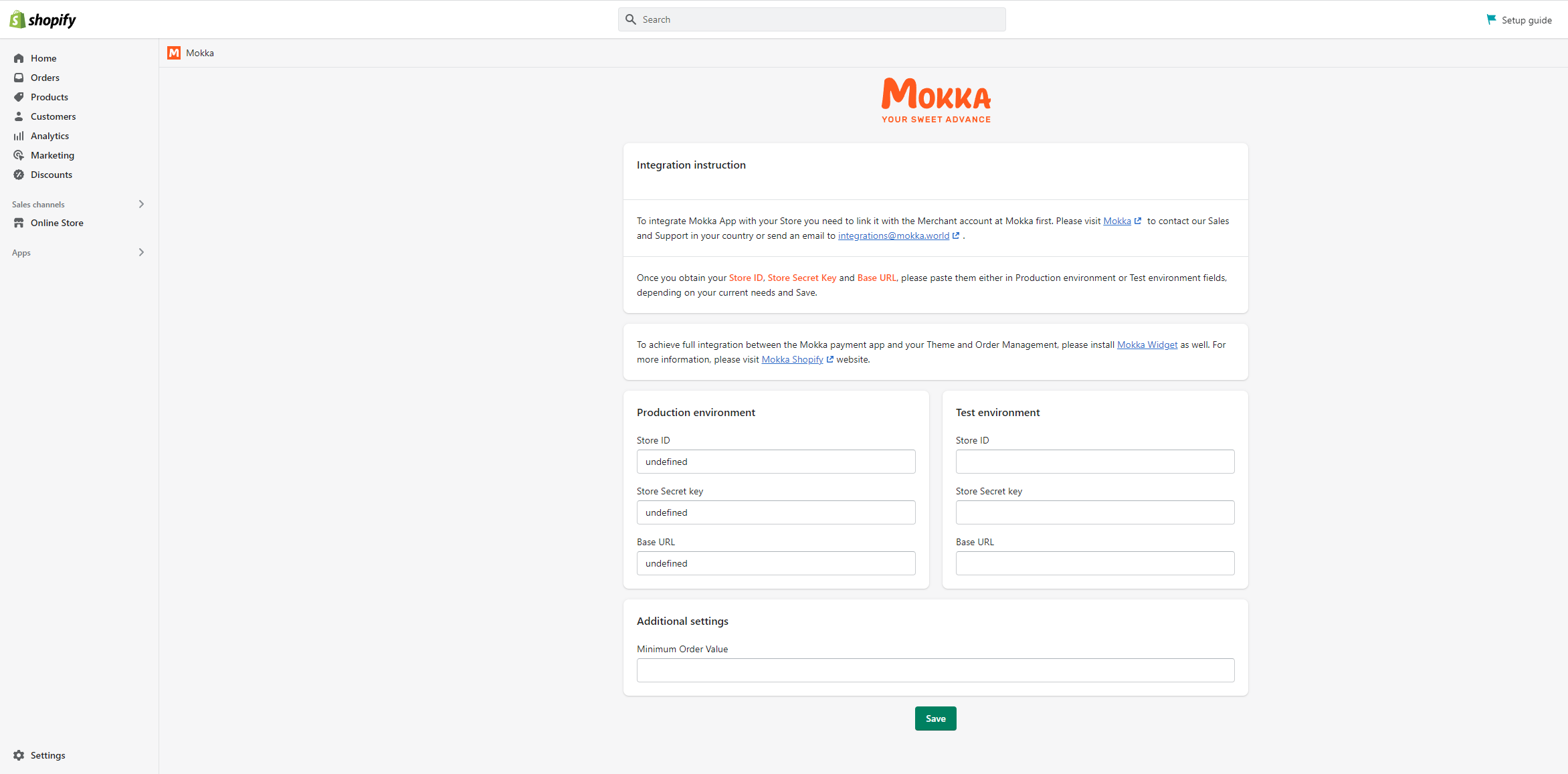
To start You have to fill Store ID, Store Secret Key and Base URL both Production and Test environment as You can see below.
How to add Mokka Widget&Events - “Product Detail Page”
You have to Customize Your Product Page. First You have to choose “Add block” as You can see below:
If You choose “Add block” then You have to choose “Product Detai Page / Mokka Widget&Events” as You can see below:
Next Step will be to Turn on the App block on the Product Page. You have to choose “Enabled” option on “Show Mokka Widget” on the right side of the Page as You can see below:
Our recomendation is to put the Mokka App block just below the Price. To do this just click on the button You can see below - this is “drug and drop” function and You can drop it below Price.
Functional Settings
When You add “Mokka Widget&Events - Product Detail Page App Block, on the right hand side You have some settings You can Use to configure App:
Here You can setup:
Show Mokka Widget - You can choose two options - Enabled and Disabled. In Enabled mode You will See Mokka Widget on the Product Page and on Disabled mode the Mokka Widget won’t be visibled.
Test Store - If You have a test store You can use there option “Yes” and You can test how Mokka Widget works on test store. You can make payments for test products with no money. If You want to use it on Your real Store then choose option “No”.
Mokka Widget color - here You can choose the color of Mokka Widget which will be the best for Your Store. You have 3 options: Orange, White. If You choose one, the color on the Product Page will change automatically.
Installment Months - here You can choose which installment option will be shown on the Product Page. If Your Price will be 99 RON and You will choose “3 months” then on the Mokka Widget there will be “From 33 RON / mo.”. Of course when Client will buy Products on Your Store and will choose the Mokka Payment, the Client will have an option to change the number of months He wants to have an installment period.
Min Price and Max Price - Allows to set up the minimum and maximum price when Widget will be visible.
MOKKA WIDGET CONTENT - here You can change widget content/labels if You want. If Your store is in other language then english, You can change it to Your Store language.
MOKKA WIDGET POPUP CONTENT - Allows to change or translate the Widget Popup content according to needs. The Widget Popup content is only visible after the Client will click on the question mark in Preview Mode.
Please remember also to Save Your changes. You can do it by clicking on the green Save button You can see below:
How to delete Mokka Widget&Events - “Product Detail Page”
If You want to delete Mokka Widget&Events - Product Detail Page then choose the button You can see below: